
Related Articles


A phone, a window for light, and a spare corner of the house are enough to make a video. The room behind the creator, however, may be doing the talking too: laundry, a busy bookshelf, or a wall that does not fit the mood. New AI editing tools make it far easier to separate a person from that setting, but the most useful shift is not a perfect one-click effect. It is the option to fix the scene after filming.
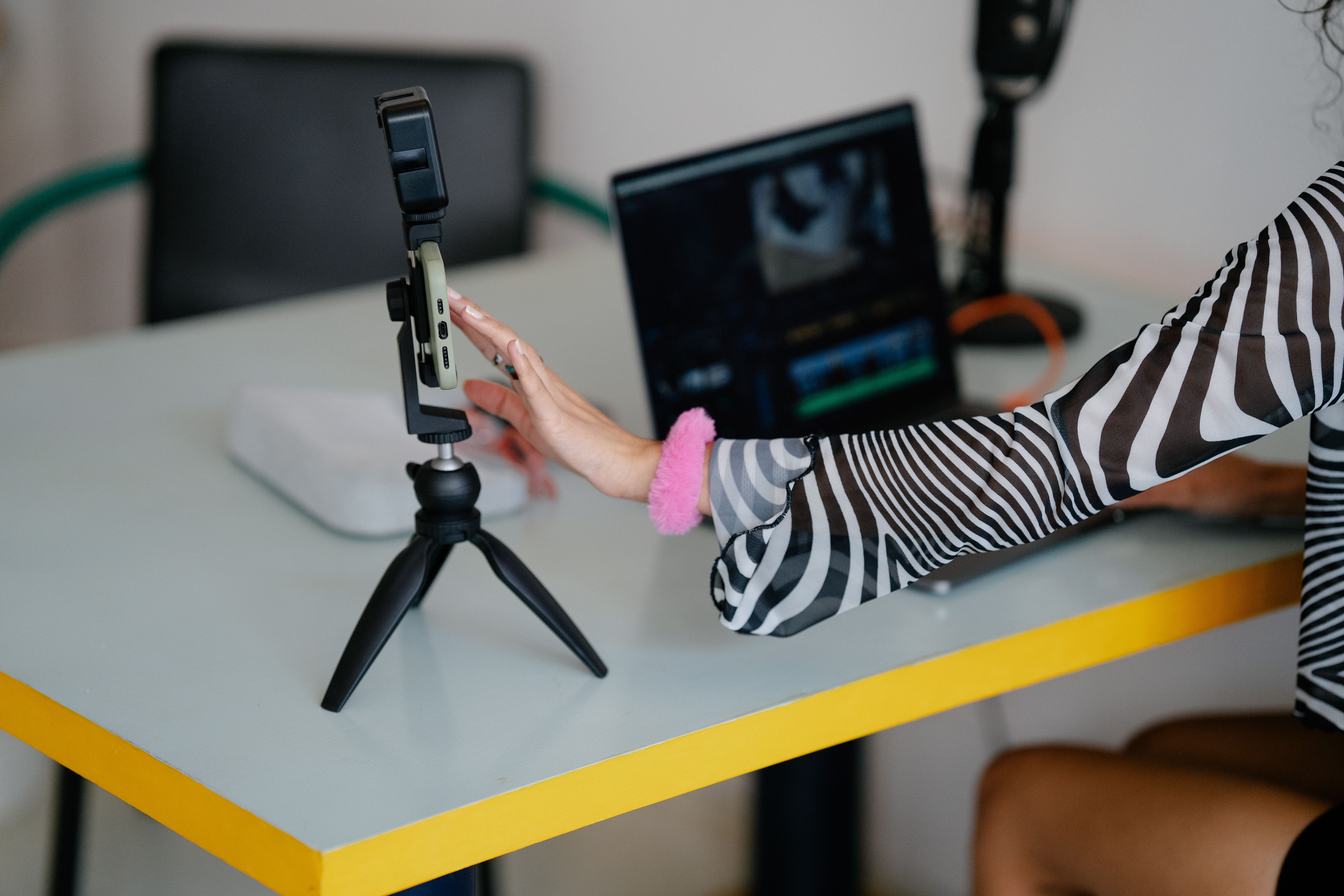
For everyday creators, removing background from video can turn an ordinary talking-head clip into a clean tutorial, product demo, or branded social post without buying a green screen or learning traditional rotoscoping. Yet a mask that looks convincing in a still preview can shimmer, clip hair, or leave a faint outline once the subject moves. The AI does the first pass; the creator still decides whether the shot works.
What removing background from video actually asks the AI to do
In a typical automatic workflow, the editor identifies a person or object, builds a mask around it, and tracks that mask through the clip. Removing the background reveals transparency or lets you place another image, video, or color underneath. That is different from simply deleting an unwanted object: the subject needs to remain intact while the scene behind it changes.
Some services now fold this into a browser-based editing flow. For example, ZeroGPT describes a video tool that can erase or replace a clip’s background; its remove background page is one option to explore. Check the tool’s supported formats, export options, and processing terms before uploading anything sensitive or building a repeat workflow around it.
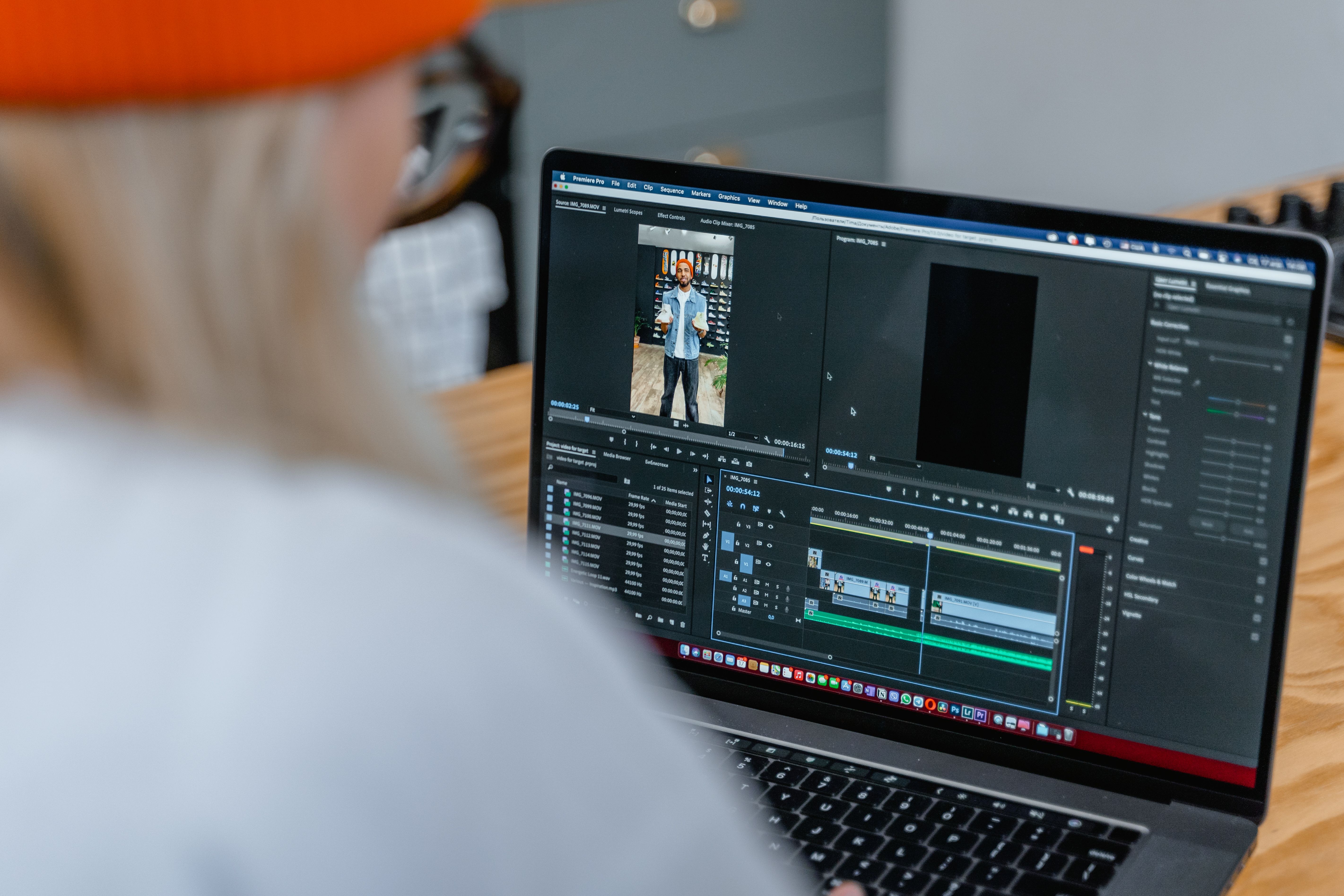
Desktop editors can put the same idea directly on the timeline. Adobe’s Premiere Object Mask documentation, updated in September 2026, describes selecting and tracking people or objects, then refining the mask by adding or subtracting parts. That refinement matters: even the official workflow treats automatic selection as something you may need to correct, not a finished result that should be trusted without review.
The hard part is motion, not the first click
Video has a problem a still image does not: the boundary must hold together over time. A few missing hair strands may seem minor in one frame, but if they flicker in and out, the cutout feels unstable. Hands crossing a shirt, fast gestures, motion blur, a subject turning against a similar-colored wall, and thin objects can all confuse the edge.
This is not just a creator’s nitpick. The CVPR 2025 paper MatAnyone: Stable Video Matting with Consistent Memory Propagation focuses on the technical challenge of maintaining consistent boundaries and fine detail from frame to frame. The research is a reminder that video matting is not simply repeating a photo cutout hundreds of times; the system has to use temporal information to keep the subject coherent as it moves.

That is why removing background from video tends to succeed when the footage gives the model clear evidence: a distinct subject, steady lighting, and controlled movement. If you can, avoid a shirt that blends into the wall, keep the camera still, and add enough light to limit motion blur. These are not elaborate production demands. They simply make the pixels easier to interpret.
A quick workflow that catches the ugly surprises
- Pick a short representative clip. Include a turn, gesture, or moment when a hand crosses the body. A static opening frame is a poor test of a moving mask.
- Run automatic removal, then inspect the edges. Look closely at hair, shoulders, fingers, glasses, and anything the subject holds. If the editor offers mask controls, correct only the sections that need it.
- Put the replacement background in before judging. A pale fringe can disappear over a light background and become obvious over a dark one. Test against the actual color or footage you plan to publish.
- Play the whole clip at normal speed. Pause on fast movement if needed, but do not approve the edit from a still frame alone. Watch for flicker, holes, halos, and edges that lag behind a gesture.
- Export a short test. Check the result at the size and crop where people will see it. A cutout that looks fine on a large editing monitor may feel awkward in a vertical phone feed.
When removing background from video, it is tempting to spend the saved time polishing the virtual room. I would spend it first on this quality pass: viewers notice a twitching outline faster than they notice that the replacement set is plain.
Where the new tools help most-and where to keep it simple
For a solo creator recording explainers, interviews, or product clips, AI removal can reduce setup friction. You can record in a usable space, then choose a restrained background that makes the subject easier to see. It is also handy for recurring formats where a consistent visual setting matters more than a perfectly cinematic composite.
But a virtual background is not automatically an improvement. A replacement scene with different lighting or perspective can make the speaker look pasted in. If the original room is quiet and uncluttered, keeping it may look more credible than swapping in a glossy studio. And when the shot depends on fine hair, transparent objects, several overlapping people, or quick movement, a real backdrop or deliberate chroma-key setup may produce a more controllable starting point.
My rule is simple: use AI to make a good-enough setup more flexible, not to rescue footage that gives the model no clear subject to follow. For removing background from video, a little care before recording often saves more time than elaborate mask repair afterward. The new wave of tools makes the edit accessible; a thoughtful frame is still what makes it convincing.
How this article was put together
This article is aimed at people making everyday social, tutorial, and product videos. It draws on Adobe’s Premiere Object Mask documentation, updated September 9, 2026, Adobe’s editing guidance, and the CVPR 2025 MatAnyone paper on stable video matting. Editing tools differ in what they process locally, support, and export, so check each provider’s current documentation before uploading footage or relying on a particular feature. No hands-on product comparison is claimed here.
